Before we start
Most people meet Git the hard way. Someone tells you to “just push it to GitHub,” you paste some commands you do not understand, something breaks, and you quietly decide Git is scary. It is not scary. It is one of the most useful tools you will ever learn, and the whole core of it fits in one sitting.
This guide takes you from nothing to your first commit pushed to GitHub, with the reasoning behind each step so the commands stop feeling like magic spells. Follow along on a real folder as you read. By the end you will have done the thing, not just read about it.
1. What is Git? What is GitHub?
Git is a version control system. That is a tool living on your own computer that keeps a complete history of every change you make to your files. Think of it as a time machine for your project. Made a mess? Roll back to a working version. Want to try something risky? Branch off safely and throw it away if it fails.
GitHub is a website that stores your Git projects online. It backs up your work, lets you collaborate with other people, and lets you share projects with the world. The simplest way to hold the difference: Git is the engine that runs on your machine. GitHub is the garage where you park your work and show it off. You can use Git with no GitHub at all. Most people use both together.
A bit of history. Git was created by Linus Torvalds in 2005, the same person who built the Linux kernel, because he needed to manage a project thousands of people were editing at once. GitHub came along in 2008 and was bought by Microsoft in 2018.
2. Installing Git and setting it up once
Download Git from git-scm.com for Windows or macOS, or install it through your package manager on Linux. Once it is installed, open your terminal and tell Git who you are. This identity gets stamped on every commit you make, so do it once now.
# Check Git is installed (you should see a version number)
git --version

# Set your identity (only needed once per machine)
git config --global user.name "Your Name"
git config --global user.email "you@example.com"

# Check it took
git config --list
One thing that saves headaches later: use the same email address you sign up to GitHub with. That is what links your commits to your GitHub profile, so your work actually shows up as yours.
3. Your first repository
A repository, or “repo,” is nothing more exotic than a folder that Git is watching. You either turn a folder you already have into a repo, or you copy an existing one down from GitHub.
# Option A: start fresh in a new folder
mkdir my-project && cd my-project
git init

# Option B: copy an existing project from GitHub
git clone https://github.com/username/repo-name.git
cd repo-name
Running git init quietly creates a hidden .git folder inside your project. That folder is where Git keeps the entire history. You never need to open it or touch it by hand. Leave it alone and it does its job.
4. The three-stage workflow (this is the part that matters)
If you understand one thing about Git, make it this. Every change you make travels through three places before it becomes a permanent part of your history. Almost every beginner who finds Git confusing is confused right here, usually about the middle stage.
Here is the honest analogy that makes it click. Imagine packing a box to put in storage.
- Your working directory is your desk. This is where you actually make changes, edit files, create a mess, try things. Nothing here is saved to history yet.
- The staging area is the box you are packing. You do not throw your whole desk into storage. You choose what goes in the box. Staging is you deciding “these specific changes belong together in the next save.”
- The repository is the shelf in storage. When you commit, you seal the box, write a label on it (“added the homepage”), and put it on the shelf. That snapshot is now permanent history you can always come back to.
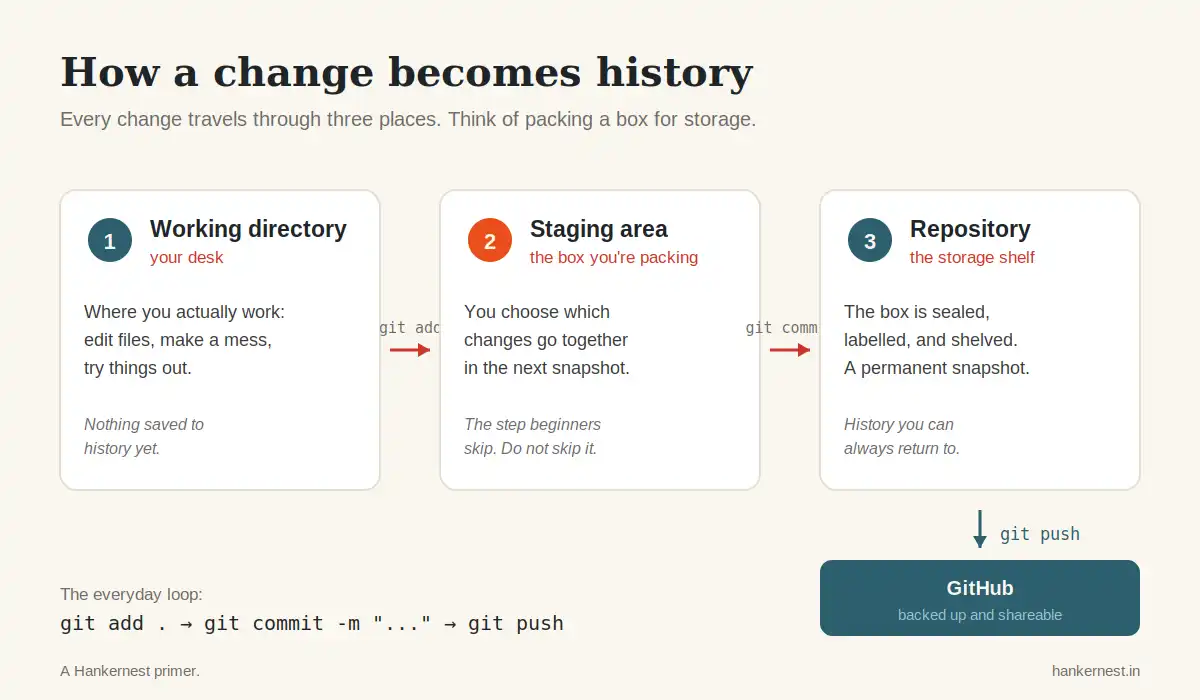
The staging step is the one people skip past, but it is the useful one. It lets you make ten changes and save them as two clean, separate commits, instead of one messy lump. Here is the workflow in commands:
# See what has changed (run this constantly, it is your map)
git status

# Stage one specific file
git add index.html

# Or stage everything you have changed
git add .

# Seal the box: commit, with a message saying what you did
git commit -m "Add homepage layout"

# Look back at your history
git log --oneline
Write commit messages as instructions, not diary entries. “Fix login bug,” not “Fixed login bug.” It reads oddly at first, but it is the convention, and future-you skimming the history will find it clearer.
5. Putting your work on GitHub
Your commits so far live only on your computer. To back them up and share them, you push them to GitHub. First create a new, empty repository on github.com (the “+” icon, top right), then connect your local project to it.
# Connect your local repo to the GitHub one (only once)
git remote add origin https://github.com/you/my-project.git

# Push your commits up (the first time, use -u)
git push -u origin main

# Later, pull down any changes that are on GitHub but not on your machine
git pull origin main

# Check what remotes you are connected to
git remote -v
The confusion that catches everyone once: committing and pushing are two different things. A commit saves to your local history. A push sends those commits up to GitHub. You can commit ten times offline on a train, then push all ten at once when you get wifi. If your work is not showing up on GitHub, you almost certainly committed but forgot to push. The
-uflag on that first push setsorigin mainas your default, so from then on a plaingit pushis enough.
6. Branches: how you work without fear
A branch is a separate line of work. You make one whenever you want to build a feature or fix a bug without risking the version that currently works. When the work is good, you merge it back into the main line.
# Create a new branch and switch onto it
git checkout -b feature/login-page

# See all your branches (the * marks where you are)
git branch

# Hop back to the main branch
git checkout main

# Merge your finished feature into main
git merge feature/login-page

# Push the branch up to GitHub (to open a pull request)
git push origin feature/login-page
Once a branch is on GitHub, you can open a pull request, usually called a PR. A pull request is a tidy way to say “here are my changes, please review them before they go into main.” Your teammates can comment, suggest fixes, and approve. This is the everyday workflow in basically every real project, open-source or professional.
A rule worth adopting early: on a team project, never commit straight to
main. Always branch, then open a PR for review. And if a command ever behaves strangely, rungit statusandgit branchfirst. Nine times out of ten you are simply on a different branch than you thought.
7. The commands you will actually use
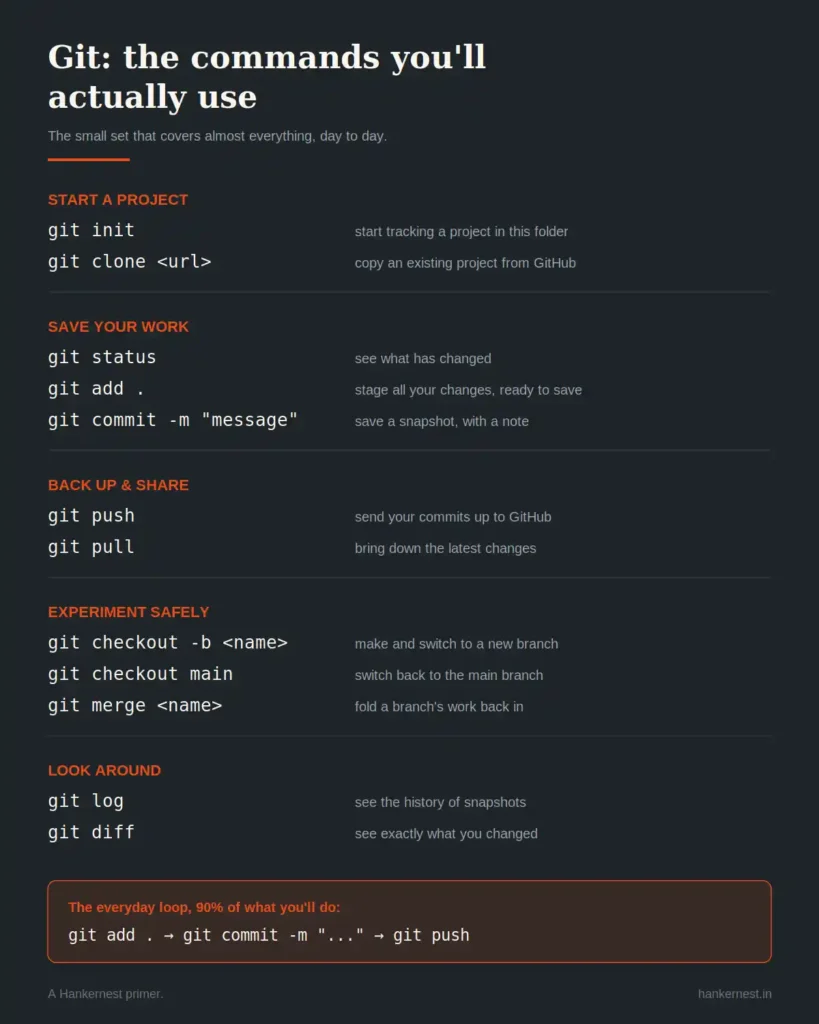
You do not need all of Git to be productive. This small set covers almost everything day to day. The cheat sheet below is built to be saved and pinned somewhere you can see it while you find your feet.
| Command | What it does |
|---|---|
git init | Start tracking a project in this folder |
git clone <url> | Copy a remote repo to your machine |
git status | Show what has changed and what is staged |
git add . | Stage all your changed files |
git commit -m "msg" | Save a snapshot, with a message |
git push | Upload your commits to GitHub |
git pull | Download and merge changes from GitHub |
git log --oneline | View a compact history |
git checkout -b name | Create and switch to a new branch |
git merge <branch> | Merge a branch into the current one |
git diff | See your unstaged changes, line by line |
git stash | Tuck away unfinished work for later |
Where to go next
You now have the full core loop: init, add, commit, push, branch, pull request. That loop is most of what professionals do all day. When you are ready for more, three things are worth learning next: .gitignore files (to keep secrets and junk out of your repo), GitHub Actions (to run tests automatically), and git rebase (for a tidier history once you are comfortable).
But do not collect more commands for their own sake. The fastest way to actually learn Git is to build one small real thing and push it. Even a simple portfolio project will teach you more than any tutorial, including this one. The commands only make sense once they are protecting something you care about.